Built for ships' stores · your xlsx stays the source of truth · v1.3

Every locker's
spreadsheet.
One scan away.

Print a QR label, stick it on the cabinet, scan it. The locker's spreadsheet opens as cards you can actually read on a phone — and edit on the spot. Save writes straight back to the same xlsx file. No database to migrate to, nothing to re-key.

QR Labels Camera Scan Card View Inline Edit Search & Grouping xlsx In & Out Web Console 11 Languages
🔎Search across every column
🏷️Label printed — 90×90 mm
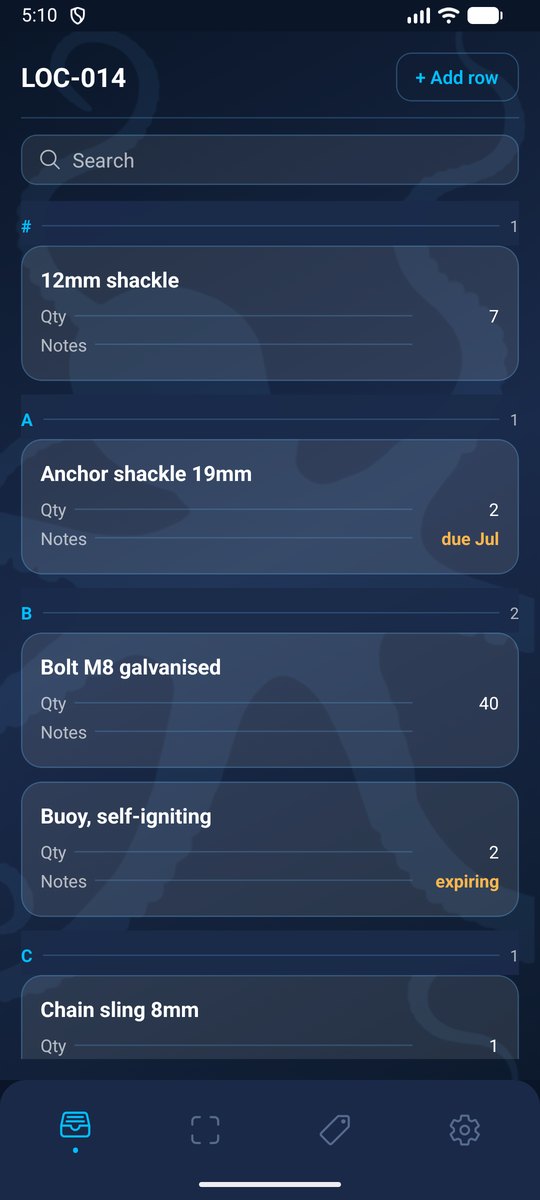
InventoryLens on Android — a locker's spreadsheet as editable cards, grouped alphabetically
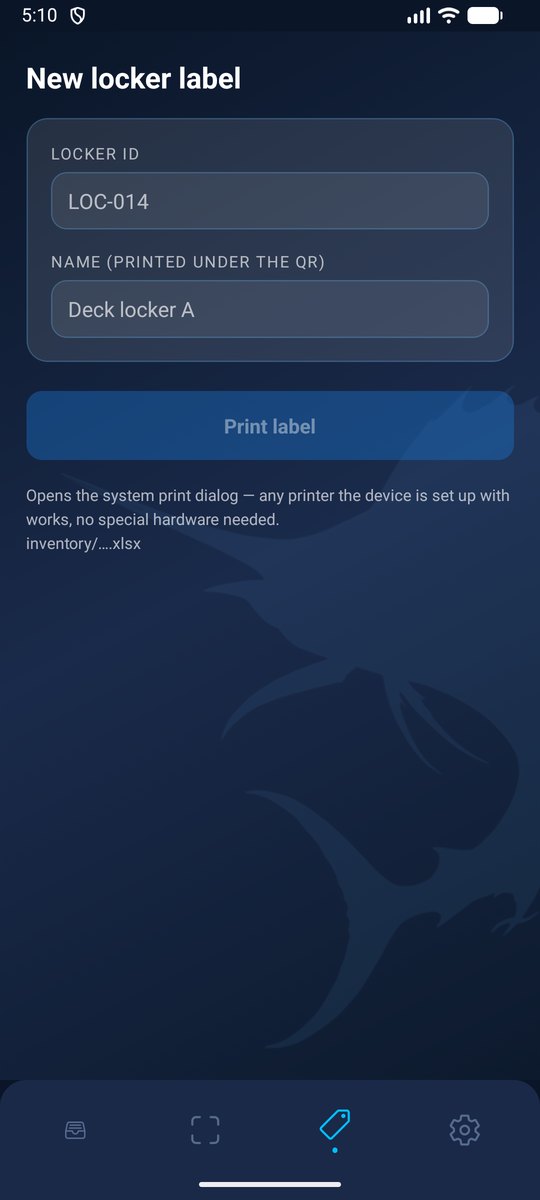
InventoryLens — generating a printable QR label for a locker
📄 Your xlsx stays the source of truth
🖨️ Prints to any ordinary printer
📷 Scan to open — no file hunting
🌍 11 languages
📱 iOS · Android · Web
Why InventoryLens

Three things that go wrong
with a stores list on a phone

Not hypotheticals — they are why this app exists.

🔍
A spreadsheet is unreadable on a phone
Tiny cells, sideways scrolling, broken formatting — and usually a full Office app just to glance at a list of shackles.
Each row becomes a card: title on top, label and value on every line.
🗂️
Finding the right file takes longer than the check
You are standing in front of the cabinet. The file is somewhere in a shared folder, under a name someone else chose two years ago.
Scan the label on the cabinet — that locker's file opens directly.
↩️
Corrections never make it back
Counts get noted on paper, in a phone note, in a message — and the spreadsheet everyone actually reads stays wrong.
Edit the card and save: the xlsx is rewritten in place, right there.
What's inside

Built for the twenty seconds
you spend at a locker

Everything is one tap from the cabinet door — nothing is buried in a menu.

🏷️
Printable QR labels
Type an ID and a name, preview the code, print. 90×90 mm through the system print dialog.
Any printer the device already knows
📷
Scan to open
The camera reads the label and goes straight into that locker. The phone's own camera works too.
Deep link: kukalab://locker/<id>
🗃️
Cards instead of a grid
First column becomes the title, the rest are label-and-value lines joined by a dotted leader.
Columns come from your file, not from us
✏️
Edit in place
Tap a value and change it. Add a row and it takes the same columns as the rest.
A number stays a number after editing
🔎
Search and grouping
Search matches any cell in a row, not just the title. Cards group by first letter automatically.
LOC-2 sorts before LOC-10
⬆️
Upload a spreadsheet
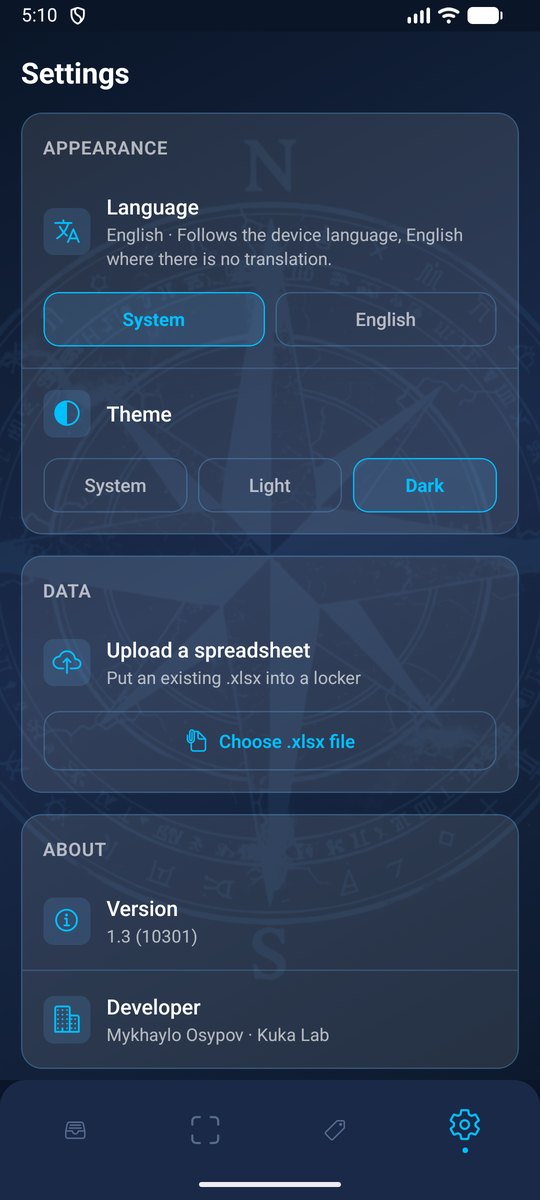
Put an existing .xlsx straight into a locker from the phone. Bytes go up untouched.
Other sheets and formatting survive
🖥️
Web console
The same lockers on a laptop, where there is no label to scan — with the full list of what exists.
Same files, same rules
🌗
Light and dark
Follows the device, or pin it. A deck in daylight and an engine room at night are not the same screen.
Remembered between launches
🌍
Eleven languages
Follows the device language, English wherever there is no translation for it.
Crews are rarely monolingual
The decision behind it

The spreadsheet is the database

Most inventory apps ask you to import your data and then own it. InventoryLens does not: each locker is one xlsx file, and that file stays exactly what it was.

How it works
One file per locker
inventory/<locker-id>.xlsx
  • Open it in Excel tomorrow — it is still an ordinary workbook
  • Columns are whatever your sheet already has
  • Save rewrites that file, in place
  • Nothing to migrate, nothing to import
  • Stop using the app and you lose nothing
What that costs
Stated plainly, because it is a real trade
  • The QR carries a short ID, so storage paths can move without reprinting labels
  • No change history — the file has whatever the last save left
  • No merge: two people editing one locker at once, last save wins
  • Needs a connection to open and to save
How it works

Four steps, once per cabinet

Then it is one scan, forever after.

Step 01
Name the locker
A short ID like LOC-014 and a human name — "Deck locker A". That is the whole setup.
Step 02
Print the label
The app builds a 90×90 mm label and sends it to the system print dialog. No special hardware.
Step 03
Scan it
Point the camera at the label. That locker's spreadsheet opens as cards, already grouped.
Step 04
Count and save
Change what changed, add rows for what's new, hit save. The xlsx is updated where it lives.
Languages

It speaks the crew's language

The interface follows the device language. Where there is no translation it falls back to English rather than showing gaps.

🇬🇧 English
🇩🇪 Deutsch
🇪🇸 Español
🇫🇷 Français
🇮🇹 Italiano
🇳🇱 Nederlands
🇵🇱 Polski
🇵🇹 Português
🇷🇺 Русский
🇺🇦 Українська
🇨🇳 中文
Missing one? It is a single file — tell us which and it ships in the next build.
InventoryLens settings — language, theme and spreadsheet upload
1
file per locker
11
languages
90mm
printable label
0
rows to re-key
Platforms

At the locker, and at the desk

One bucket of files behind all three.

📱
iOS
iPhone & iPad
In development
🤖
Android
Phones & tablets
In development
🖥️
Web console
Any browser
In development

Not published yet. Want to try it on your stores before it is? Write to us and we will set you up.

Get in touch

Put a label on the first cabinet

Bring the spreadsheet you already keep. There is nothing to import and nothing to re-type — InventoryLens reads the file you have.